Every time I set up a multi-language real estate site, I ran into the same wall. WPML or Polylang would handle blog posts fine. But the moment you had property listings, agent profiles, custom taxonomies like neighborhoods and property categories, and an Elementor-built frontend — things started breaking in quiet, maddening ways. Search filters would ignore language. Taxonomy slugs would clash in URLs. Menu items would point to the wrong language version of a page. The plugins didn’t know what a property listing was.
That’s the problem WPEstate Translate solves. It’s a translation management plugin built specifically for WPResidence and WPRentals, where the data model is built around property CPTs, agent directories, and WPResidence-specific taxonomies and widgets.
Why Generic Translation Plugins Don’t Work for Real Estate Sites
This isn’t a complaint about WPML. It’s a structural problem.
Generic translation plugins are built for general WordPress content — pages, posts, WooCommerce products. They’re not built for a site where a property listing has 30+ custom meta fields, belongs to five taxonomies (city, area, category, action, status), gets queried by a search engine that filters across all those dimensions, and has its front-end rendered by Elementor widgets that each have their own translatable field maps.
Here’s what breaks on a real estate site with a generic plugin:
- The property search filter queries the wrong language posts and mixes them into results
- Taxonomy slugs like
/property-for-sale/appear in every language instead of translating per language - Navigation menus have no language assignment, so the Spanish visitor sees the English menu
- Elementor widget text in property search and listing widgets has nowhere to go for translation
- Custom field sync rules don’t exist, so you can’t tell the plugin which fields to copy across languages and which to keep separate (like coordinates vs. description)
- The WP_Query running your listings page doesn’t filter by language, so translated clones bleed into the default language view
WPEstate Translate was written to handle all of this. Not as an afterthought — as the entire point.
What WPEstate Translate Is
It’s a WordPress plugin that manages translation for WPResidence and WPRentals sites. For each active language, it creates per-language clones of your posts tied together by a translation group ID. The plugin handles the full workflow: creating drafts, syncing metadata, translating taxonomy terms, filtering frontend queries, rewriting permalink structures, and compiling .MO files for theme strings — all without touching your theme files or WordPress core translations.
Key Benefits
- Frontend property listings only show the right language. A WP_Query filter runs on every listing request, so Spanish visitors see Spanish properties and nothing else bleeds through.
- Taxonomy terms translate and rewrite correctly in URLs. The plugin maintains term-level translation links and rewrites taxonomy permalinks using the translated term slug — no mixed-language URLs in your property archives.
- No theme files get overwritten. Compiled .MO files go into a custom plugin directory. Theme and core translation files stay untouched.
- Every menu gets a language. You assign each nav menu to a language. A menu sync tool lets you clone structure from your default-language menu to others, resolving translated URLs automatically for each item.
- Per-language SEO tags. The plugin outputs
hreflangalternate link tags and canonical URLs inwp_head, and it integrates directly with Yoast SEO and Rank Math so their canonical and hreflang filters respect the active language. - AI-powered auto-translation via OpenAI. Connect your OpenAI API key, pick a post type, and the plugin batches through your published posts, translating them one by one with live status updates. The translated post gets published automatically.
What’s Inside
Languages and Routing
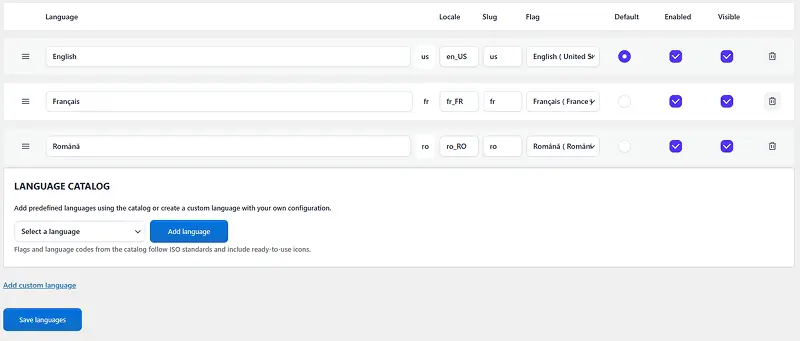
The language manager screen is where you add and configure languages. You can drag-and-drop to reorder them (order matters for URL structure), toggle active/inactive status, and set the default. Changes save via AJAX without a page reload.
Once languages are set, the language router takes over on the frontend. It parses incoming URLs for language slugs, detects the visitor’s preference from a cookie or their browser’s Accept-Language header, and sets the active language for the request. Permalink helpers generate language-aware URLs for posts and archives so every internal link lands in the right language context.
Visitors also get a frontend language switcher widget — a standard WordPress widget you drop into any sidebar or footer. It reads the list of public languages and renders dropdown links. The widget ships with its own stylesheet so it displays correctly without any theme CSS changes.
Editor and Workflow
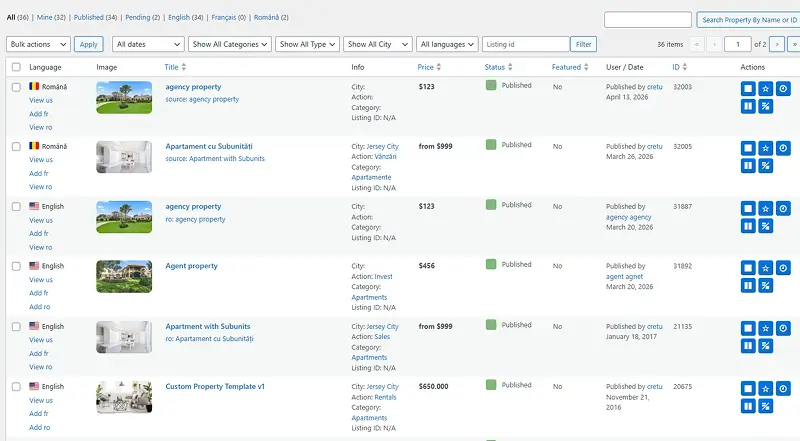
In the WordPress post list, every post gets a language badge showing which language it belongs to. You can filter the list by language, which is the fastest way to audit translation coverage across a large property database.
Inside the post editor, a language selector lets you assign a language to a new post. For existing content, the auto-translation metabox lets you trigger translation to any active language directly from the publish panel. The WordPress admin bar gets a language dropdown that lets editors switch their admin view to see content from a specific language without changing the WordPress interface language.
Taxonomy terms have their own translation screen. You can link a term in the default language to its translated counterpart, using either direct meta mappings or a translation group ID as a fallback lookup.
Custom field rules let you define per-field behavior: clone a field value across all language versions (makes sense for GPS coordinates, price, or area size) or isolate it so each language version holds its own value (makes sense for description text or custom SEO copy). The rules screen lists all detected custom fields and lets you set the behavior without touching code.
Elementor Compatibility
Elementor-built pages store all their content inside the _elementor_data post meta as JSON. WPEstate Translate extracts translatable strings from that JSON by comparing widget names and field keys against a translatable widget field map that covers both Elementor core widgets (headings, text, buttons) and WPResidence-specific Elementor widgets.
The extracted strings go into the translation payload alongside post title, content, excerpt, and custom fields. When auto-translation runs, translated values get written back into the correct positions inside the Elementor JSON for the target-language post, and the Elementor CSS cache regenerates so the translated page renders cleanly.
Shortcode compatibility filters also run per language, so WPResidence shortcodes that appear in page content adjust their output to the active language when rendering on the frontend.
String Translation and Theme Strings
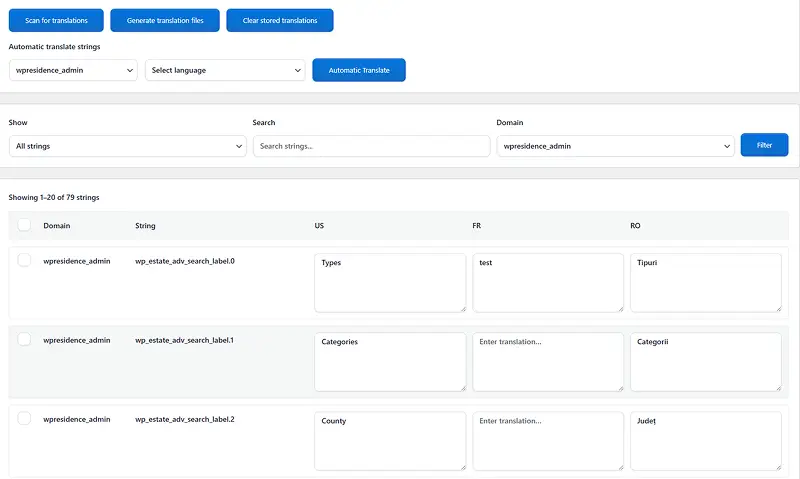
The plugin includes a string translation screen where you can translate arbitrary UI strings — button labels, placeholder text, widget headings, theme-specific strings registered by WPResidence. When you save translations here, the plugin compiles them into .MO binary files stored in a private plugin directory. The translation loading hooks override WordPress’s default text domain loading so your compiled files take priority without modifying anything in the theme folder.
WPResidence widget strings are registered automatically, so the string editor surfaces theme-specific text that would otherwise require manual .po file editing.
The admin also includes a cache purge tool to clear compiled translation files and regenerate them, plus a reset settings utility for starting fresh without deactivating the plugin.
How It Works in Practice
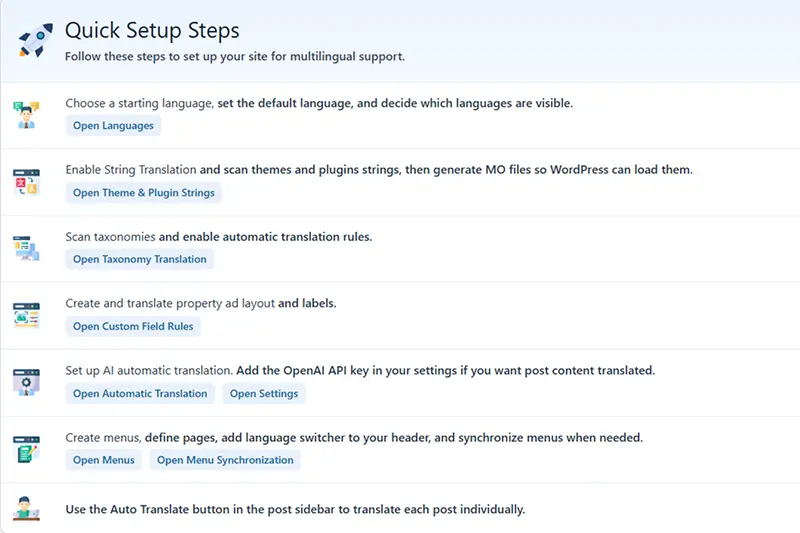
The typical setup flow looks like this.
You install the plugin and go to WPEstate Translate > Languages. You add your target languages, set the default, and drag them into the order you want. That determines the slug structure (/en/, /fr/, etc.).
Then you go to Custom Field Rules and decide which fields clone across languages and which isolate. For a WPResidence site, coordinates, price, and area usually clone. Title, description, and custom SEO copy usually isolate.
For existing property content, you go to Automatic Translation, connect your OpenAI API key, select your post types, and hit Start. The plugin works through your posts one by one, showing you live progress. Each translated post is created as a published clone with the correct language meta and linked back to the original via a shared translation group ID.
For menus, you go to Menu Synchronization, pick your source menu (the default language one), pick the target language menu, and run the sync. The plugin walks each menu item, finds the translated version of the linked post or page, and builds the target menu pointing to the right translated URLs. Taxonomy links get their slugs rewritten based on translated term data.
For Elementor pages, the auto-translate flow handles the widget JSON extraction and rewrite automatically alongside the post content — nothing extra to configure.
Built for WPResidence and WPRentals
The tight integration angle matters here. WPEstate Translate isn’t trying to be a universal translation solution. It’s written for the specific data model these themes use: the property CPT with its taxonomy structure, the agent and agency CPTs, the WPResidence Elementor widget field maps, the theme string domains, and the WPResidence frontend query layer.
When the plugin filters a WP_Query on the frontend, it knows what post types matter. When it extracts Elementor translatable fields, it reads the WPResidence-specific widget config alongside the Elementor core config. When it registers theme strings for translation, it registers the strings WPResidence actually outputs. You’re not fighting a generic plugin that doesn’t know your theme exists.
The plugin is version 1.0 — which means it does what it needs to do, and there’s more coming. OpenAI auto-translation is live and working. The Google Translate, DeepL, and Microsoft Azure provider integrations have their scaffolding in place but aren’t active yet. If you need multi-provider support right now, connect OpenAI and you’re covered. The other engines will follow in upcoming releases.
Install WPEstate Translate Today
If you’re running WPResidence or WPRentals and you need a multi-language site, download WPEstate Translate, activate it, and start with the Languages screen. Everything else follows from there.
Don’t fight generic plugins into submission trying to make them understand property listings. Use the tool that was built for the job.
WPResidence , purpose-built tools for real estate WordPress sites.
FAQ
How does WPEstate Translate prevent mixed-language property search results on WPResidence sites?
WPEstate Translate filters listing queries by the active language on every frontend listing request, so your property grids, archives, and search results only return posts in the visitor’s current language. This avoids the common issue where translated “clones” bleed into the default language view because the underlying WP_Query is not language-aware.
Will taxonomy URLs (city, area, category, action, status) translate correctly, or will I get the same slug in every language?
Taxonomy terms are translated and linked at the term level, and the plugin rewrites taxonomy permalinks using the translated term slug. That means your property archives don’t end up with mixed-language URLs (for example, a default-language taxonomy slug appearing across all languages) because the URL rewrite uses the translated term data for the active language.
How does WPEstate Translate handle Elementor pages and WPResidence-specific Elementor widgets?
Elementor content is stored in the _elementor_data post meta as JSON, so WPEstate Translate extracts translatable strings from that JSON using a translatable widget field map that covers both Elementor core widgets (like headings, text, and buttons) and WPResidence-specific Elementor widgets. During translation, it writes the translated strings back into the correct places in the Elementor JSON for the target-language post and regenerates Elementor’s CSS cache so the translated page renders cleanly.
Can I control which property custom fields are shared across languages vs translated per language?
Yes. WPEstate Translate includes custom field rules that let you define per-field behavior: clone a value across all language versions or isolate it so each language has its own value. Practically, this is how you keep fields like GPS coordinates, price, or area size consistent across languages while letting fields like description text (and other language-specific copy) differ per language.
How does the OpenAI auto-translation workflow work, and what gets created in WordPress?
After you connect your OpenAI API key, you select the post type(s) you want to translate and start the automatic translation run. The plugin processes published posts in batches, translating them one by one with live status updates, and creates a per-language published clone for each target language. Each translated post is linked back to the original via a shared translation group ID, and the translated content can include post title/content plus extracted Elementor widget strings and other supported fields.