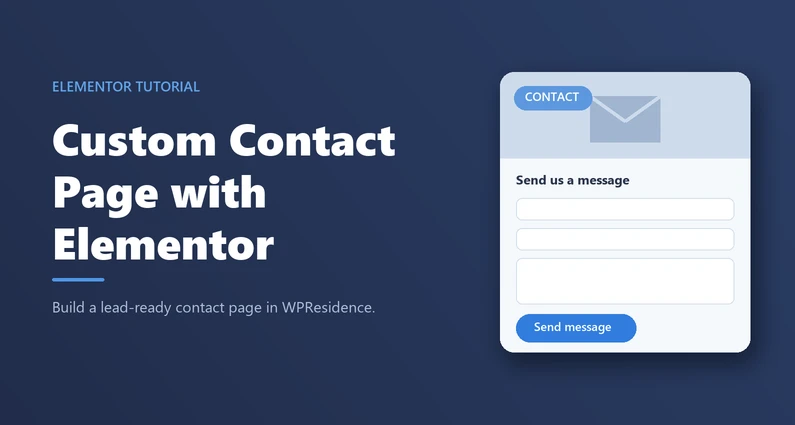
Hey there, real estate dynamos! Ever thought about how many potential clients slip away simply because they can’t be bothered to fill out a boring contact form? Shocking, I know. But here’s the good news: by creating a custom contact page with Elementor, you can turn this mundane experience into a digital love letter that attracts clients like bees to honey. Let’s dive into how I did it and how you can too!
The Contact Page: Your Lead’s First Impression
Think of your contact page as that first handshake. It needs to be firm, warm, and make people want to keep talking. It’s often the first place potential clients land when they’re ready to reach out. A good contact page can be the difference between a lead and a conversion. Here are a few things to keep in mind:
- Make it easy to find: Don’t bury it in a dropdown menu. Put it out there where everyone can see it.
- Keep it simple: No need to ask for their life story. Name, email, and maybe a phone number will do.
- Reassure them: A little note about how their information will be used can go a long way in building trust.
Why Elementor?
Now, you might be wondering, “Why use Elementor for my contact page?” Great question! Elementor is not just any page builder; it’s like that really cool friend who makes everything fun and easy. Here’s why I swear by it:
- Intuitive Drag-and-Drop: It’s like arranging furniture in your home. If you can drag and drop, you can build stunning pages.
- Endless Customization: Different styles for different real estate niches. Want a sleek modern look? Done. Rustic charm? You got it.
- Responsive Design: Looks fab on desktop, tablet, and mobile. Because let’s be honest, half your clients will check your site on their phone.
Let’s Build It! Step-by-Step Guide to Creating a Custom Contact Page
Ready to roll up your sleeves and get your hands dirty? Let’s do this!
Step 1: Create a New Page
First things first, log into your WordPress dashboard and navigate to Pages > Add New. Give your page a title—something like “Contact Us” or “Let’s Connect”—and hit Publish to save it. Don’t worry, we’ll come back to editing it in Elementor shortly.
Step 2: Edit with Elementor
Once your page is published, click Edit with Elementor. This is where the magic happens. Now you’re in the Elementor interface, where you can start building.
Step 3: Add a Map
Elementor’s WPResidence Map widget is perfect for this. Just drag it into your layout and customize it to your liking. You can choose to show your office location or leave it blank to emphasize contact information.
Step 4: Add Team Contact Form Builder
For the contact form, I recommend using the Contact Form Builder from the WPResidence theme. This form is highly customizable and fits seamlessly into any layout. Here’s how to get started:
Substep 1:
Drag and drop the form widget into your page. It’s like placing a cherry on top of your digital sundae.
Substep 2:
Edit the fields in your form. By default, it asks for name, email, phone number, and message. Simple, right? You can also choose whether to make the phone number field optional. I recommend keeping it optional because some people will be too skittish to give out their digits before they’ve met you.
Substep 3:
Set up notifications. Ensure the inquiries go directly to your email so you can respond quickly. The faster you respond, the better your chances of converting that lead.
Substep 4:
Click publish, and voila! Your new contact page is live. Take a moment to admire your handiwork.
The Benefits of a Custom Contact Page
Okay, let’s talk about the real question here: What’s in it for me? A well-designed contact page can boost your response rates by a staggering 25%. That’s a lot of potential clients! Here are a few benefits you can expect:
- Increased Lead Generation: A user-friendly form encourages more submissions.
- Better Client Communication: Directs leads straight to your inbox, making it easier to follow up.
- Enhanced User Experience: A clean, easy-to-navigate page makes visitors feel like you’ve rolled out the red carpet just for them.
In Conclusion
Creating a custom contact page with Elementor is like adding a secret weapon to your real estate arsenal. It not only improves lead generation but also enhances your brand’s online presence. Plus, it’s super easy to do.
Now, let’s hear from you! What’s one feature you can’t live without on your contact page? Any tips and tricks you’d like to share? Drop them in the comments below.
Happy selling!
FAQ
How do I create a new contact page in WordPress before editing it with Elementor?
In your WordPress dashboard, go to Pages > Add New, give the page a clear title such as “Contact Us” or “Let’s Connect,” and click Publish to save it. After it’s published, you can open the page and click Edit with Elementor to start building the custom layout.
Which widgets should I use in Elementor to build a WPResidence contact page layout?
For a WPResidence-based site, you can build the page in Elementor using two key pieces: the WPResidence Map widget and the WPResidence Contact Form Builder widget. Drag the map into your layout if you want to show your office location (or keep it blank if you want the page to focus on the contact details), then place the contact form widget where you want leads to submit inquiries.
What fields should a contact form include for a real estate website?
Keep the form simple so visitors are more likely to complete it. A practical baseline is name and email, with phone number as optional, plus a message field for the inquiry details. In the WPResidence Contact Form Builder, the default setup includes name, email, phone number, and message, and you can choose whether the phone number is optional.
How do I make sure contact form submissions go to my email?
In the WPResidence Contact Form Builder settings, set up notifications so inquiries are sent directly to your email address. This ensures leads land in your inbox for quick follow-up, which helps improve your chances of converting the inquiry.
How can a custom Elementor contact page improve lead generation?
A well-designed, easy-to-find contact page can increase submissions because it reduces friction for visitors who are ready to reach out. The article notes that a well-designed contact page can boost response rates by 25%, and it also highlights that sending inquiries straight to your inbox supports faster responses and better client communication.