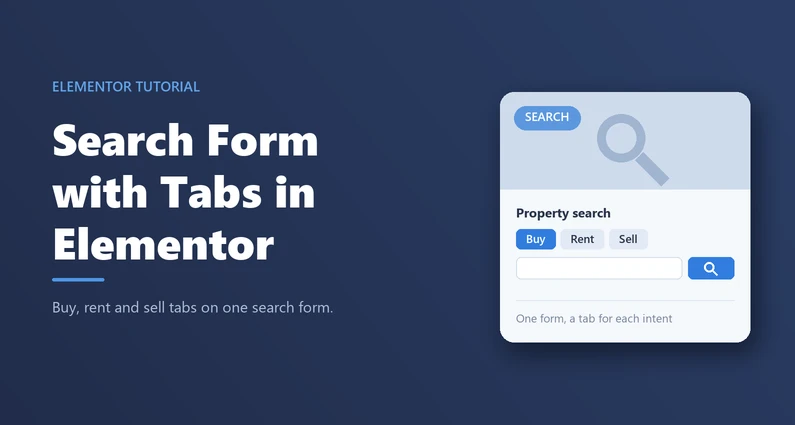
Hey there, real estate enthusiasts! Are you looking to make your property search smoother for your clients? I know how important it is to provide a user-friendly experience. That’s why I want to share some easy and efficient ways to create a search form with tabs in Elementor. Imagine your clients effortlessly sorting through their search criteria with the ease of flipping a switch. Exciting, right? In this guide, I’ll walk you through the steps to set up a search form with tabs using Elementor, ensuring your clients have the best tools to find their dream properties.
Why Use Tabs in Your Search Form?
First off, let’s talk about the benefits of using tabs in your search form. It’s all about making things easy and efficient for your clients. Here’s why tabs can be a game-changer:
- Organized Searches: Tabs can separate different types of searches, like sales and rentals. This means clients won’t waste time searching through irrelevant listings.
- Improved User Experience: Clients get a seamless, interactive experience, increasing their satisfaction.
- Higher Engagement: A well-designed search form keeps clients on your site longer, which could lead to more inquiries!
Setting Up Your Search Form with Tabs
Ready to get started? Here’s a step-by-step guide to setting up your search form with tabs in Elementor.
Step 1: Access Your Elementor Editor
First, log in to your WordPress dashboard and navigate to the page where you want to add the search form. Click on Edit with Elementor to open the Elementor editor.
Step 2: Add a New Section
In the Elementor editor, click on the plus icon to add a new section. Choose a single column structure, which will hold your search form.
Step 3: Insert the Search Form Widget
Drag the Search Form widget from the Elementor panel into your newly created section. This is the base of your search tool, and from here, we’ll add tabs to enhance functionality.
Step 4: Create Your Tabs
To create tabs, you’ll need to use the Tabs widget in Elementor. Drag the Tabs widget above your search form. Now you have two tabs by default—“Tab 1” and “Tab 2.” Rename these tabs to reflect the categories of your search, like “Sales” and “Rentals.”
Step 5: Duplicate the Search Form in Each Tab
In each tab, you’ll want to add a duplicate of the search form. Simply copy and paste the form from one tab to the other. This way, the form fields will remain consistent across tabs, but you can configure each one to correspond with its respective category.
Step 6: Configure Each Tab
Now, let’s customize each tab’s search fields. Click on the first tab (e.g., Sales) and open the Content panel on the left. Adjust the fields for this search, like adding Property Type, Price Range, and Bedrooms. Then, switch to the second tab (Rentals) and modify the fields to match your rental criteria, ensuring both tabs have the most relevant options for your clients.
Step 7: Style Your Tabs
Want to make your tabs pop? Switch to the Style tab in Elementor. Here, you can change the colors, typography, and spacing of your tabs to match your brand. Play around with different styles to find what looks best!
Preview and Test Your Search Form
Before going live, always preview your changes. Click on the eye icon in the bottom left corner of Elementor. Test out your search form with tabs to ensure everything works smoothly. Once you’re satisfied, click the green Update button to make your changes live!
Additional Tips for Enhancing Your Search Form
Here are a few extra tips to enhance your search form further:
- Add More Fields: Include additional fields like Location or Amenities to make searches even more specific.
- Use Icons: Add icons to your tabs (like a house for sales and a key for rentals) to visually differentiate them.
- Make It Responsive: Always ensure your search form looks great on mobile devices. Elementor makes it easy to adjust settings for different screen sizes.
Conclusion
Creating a search form with tabs in Elementor is a fantastic way to streamline your clients’ property searches. By following these steps, you’ll provide a user-friendly experience that keeps clients returning to your site. Have any questions or additional tips? Share them in the comments below! Happy selling!
And there you have it! A comprehensive guide to creating a search form with tabs using Elementor. I hope you find this tool as useful in your real estate endeavors as I have. Remember, a well-implemented search form can make a world of difference in your clients’ experiences. Good luck, and happy searching!
FAQ
Why should I use tabs in a real estate search form in Elementor?
Tabs help you separate different kinds of searches (for example, Sales vs Rentals) so visitors do not have to sift through irrelevant results.
They also improve the on-page experience by keeping the interface organized and interactive, which can keep users engaged longer and potentially lead to more inquiries.
How do I add a tabbed search form to a page using Elementor?
Open the page in WordPress and click Edit with Elementor. Add a new section (a single column works well), then drag the Search Form widget into that section.
Next, drag the Tabs widget above the search form, rename the default tabs to match your categories (such as Sales and Rentals), and place a search form inside each tab so each category has its own configured form.
Do I need a separate search form for each tab, or can I reuse the same one?
In practice, you will duplicate the search form into each tab. Copy and paste the form from one tab to the other so the fields stay consistent, then adjust each duplicated form so it matches the intent of that tab (for example, Sales criteria in the Sales tab and rental criteria in the Rentals tab).
What fields should I configure for Sales vs Rentals tabs?
Configure each tab with fields that reflect what users typically filter by for that category. For a Sales tab, you can add fields such as Property Type, Price Range, and Bedrooms.
Then switch to the Rentals tab and modify the fields to match rental-focused criteria, keeping the options relevant for renters while maintaining a consistent overall form layout.
How can I style and test my tabbed search form before publishing?
Use Elementor’s Style tab to adjust your tabs’ colors, typography, and spacing so the search interface matches your site branding.
Before publishing, click the eye icon in Elementor to preview and test the form interactions, then click Update to make the changes live once everything works smoothly.