Last updated: September 21, 2026
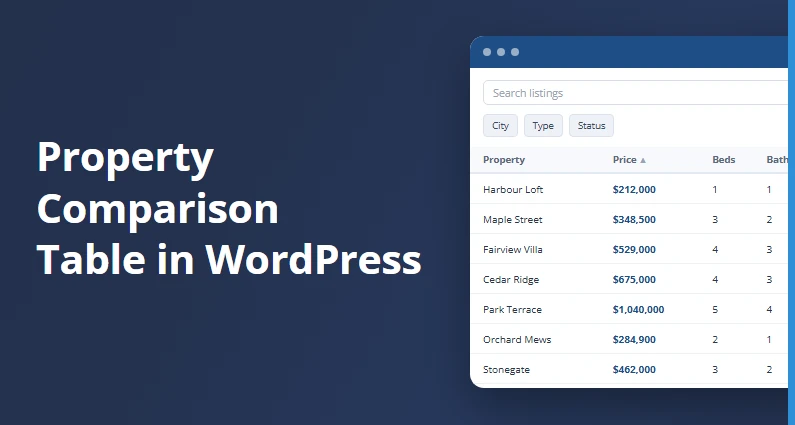
A property comparison table puts your listings in rows and columns instead of photo cards, so a buyer can sort thirty of them by price, filter down to one neighborhood, and rule out everything with two bedrooms without opening thirty tabs.
Posts Table Pro builds that table in WordPress from listings you have already published. You add one shortcode to a page and the table fills itself. Nothing gets retyped, and a new listing appears in the table the moment you publish it.
The walkthrough below uses the WPResidence theme, so every field name in it is real and you can copy it as written. It also holds one line throughout. This table is not a replacement for the theme’s Compare Properties page, which lines up four chosen properties in full detail, and the last section covers which buyer you send where.
What Is a Property Comparison Table in WordPress?
A property comparison table is a single page that shows many listings as rows and columns instead of photo cards. Price, beds, baths, size and city sit in fixed columns, so a buyer can sort by price, filter to one neighborhood or search by keyword, without opening twenty listings one at a time.
Consistency in those columns is the part doing the work. Baymard Institute, which runs its own e-commerce usability benchmark, found that 64% of the sites it tested failed to display list item attributes properly, and that inconsistent attributes caused test users to reject products that suited them.
That is general e-commerce list design, not property search, and not a verdict on tables against grids. The narrow point holds anyway. When specs matter, showing them the same way on every row helps, and fixed columns do that by construction.
This guide builds that table with Posts Table Pro, from Barn2.
Compare Properties Page vs. Listings Table: Which One You Need
Settle this before you install anything. WPResidence already ships a Compare Properties page, and a listings table isn’t a replacement for it. They solve two different moments in the same buyer’s afternoon.
| Question | Listings table (Posts Table Pro) | Compare Properties page |
|---|---|---|
| What it is for | Scanning and filtering many listings | Side by side detail on listings already picked |
| How many properties | As many as match the filters or the search | Up to 4 at a time |
| Who picks them | The visitor narrows the list itself | The visitor selects each one by hand |
| What the visitor sees | A sortable, filterable list with columns like price, beds and baths | All the details lined up next to each other |
That four property ceiling isn’t a soft guideline. WPResidence’s own documentation for the Compare page says visitors can compare up to four properties at the same time, and the theme’s compare script enforces it in the browser. We read the number out of both before writing this, because a limit you state should be a limit you checked.
So build both, and send visitors to the table first. The table is where someone gets from forty listings to four. The Compare Properties page is where those four get examined.
Neither one makes the other redundant.
What You Need Before You Start
Three things, and you probably have two already:
- A WordPress site running the WPResidence theme, with properties already entered. You’ll see them in wp-admin under a menu labeled Properties, and under the hood they live in a post type called estate_property. Keep that string handy.
- Posts Table Pro, which is step 1 below.
- Whichever page builder you already use. Elementor, WPBakery and the block editor are all supported by the theme, per WPResidence’s own pricing FAQ, and the table goes in the same way on any of them.
How to Set Up the Table, Step by Step
Five steps, and three of them are a single line of shortcode. Steps 3 and 4 are where property data behaves differently from blog posts, and where generic tutorials leave you stranded.
- Install Posts Table Pro. In your WordPress admin, head to Plugins » Add New, upload the zip, and activate it. Posts Table Pro is $69 per year for a single site, or $349 once for a lifetime license on a single site, on Barn2’s product page. There’s no free tier that can do this job.
- Point the table at your properties. Barn2’s shortcode reference documents a post_type attribute that sets which post type a table pulls from, and it defaults to post. A bare [posts_table] shortcode shows your blog, not your listings. WPResidence keeps properties in a post type of their own, estate_property, which is the value that attribute needs. The finished shortcode is [posts_table post_type="estate_property"]. Barn2 supplies the mechanism, the theme supplies the string.
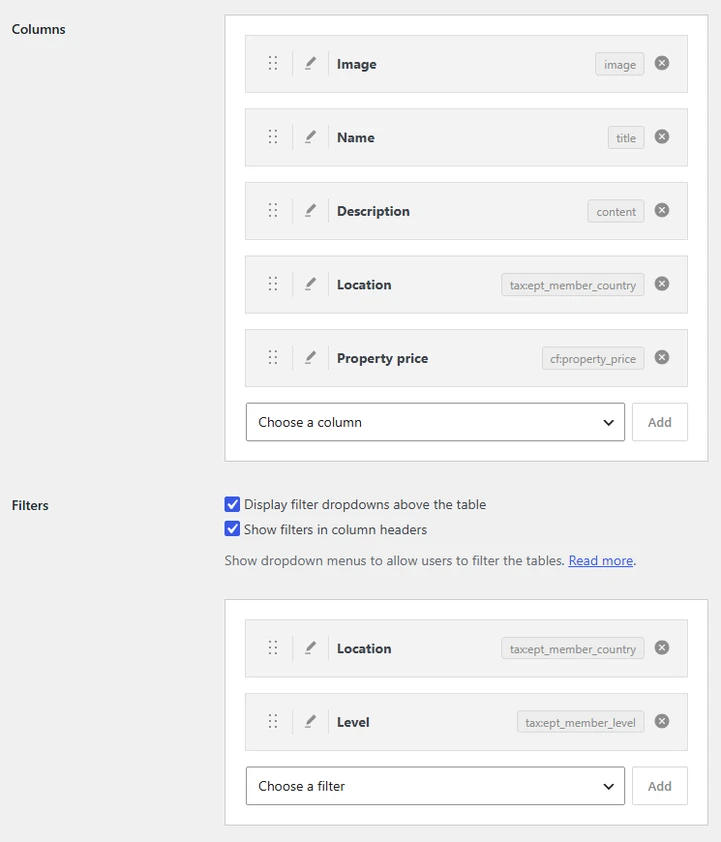
- Choose your columns. Two prefixes, and they aren’t interchangeable. Custom fields go in as cf: plus the meta key, so cf:property_price and cf:property_bedrooms. Taxonomies go in as tax: plus the taxonomy slug, so tax:property_category and tax:property_city. Barn2’s column reference also warns that the built-in categories and tags column keywords apply to standard WordPress posts only, not custom post types, so neither one applies to a property table.

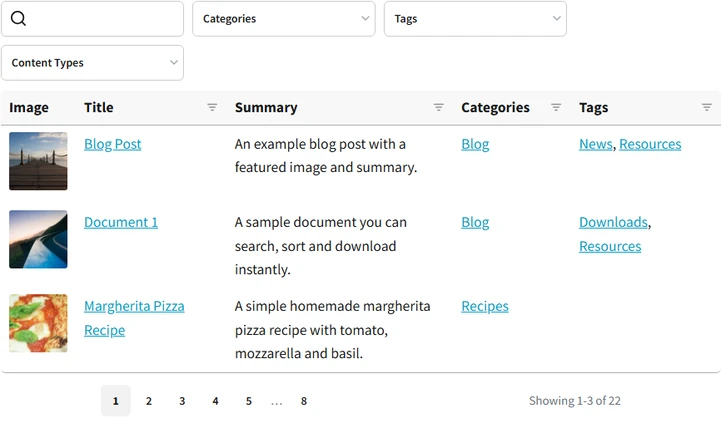
Column setup in Posts Table Pro: taxonomy columns carry a tax: key, custom fields a cf: key, and the filters list takes taxonomies only. Screenshot from Barn2’s Posts Table Pro demo. - Add filters and a search box. The filters attribute puts dropdown filters above the table, and Barn2’s own wording scopes it to taxonomy columns, so filters="tax:property_category,tax:property_city" hands a buyer a category dropdown and a city dropdown. The keyword search box above the table is a separate tool with wider reach: Barn2’s search documentation says it searches any column’s contents, custom fields and taxonomies included. Resist the urge to add a bedrooms dropdown.

The finished layout: keyword search box and filter dropdowns above the table. Screenshot from Barn2’s live demo at poststablepro.barn2.com. - Put it on a page. Create the page the table will live on. On Elementor, drag in Elementor’s own Shortcode widget and paste the shortcode into it. In the block editor, use the Gutenberg block Barn2 ships with the plugin. In WPBakery, paste the shortcode into a text element. Publish, then open the page as a visitor would.
Why You Can Filter by City but Not by Bedrooms
Open any listing under Properties in wp-admin and you’ll see a wall of fields with friendly labels. They hide the distinction that decides what your table can do.
Price, size, bedrooms and bathrooms are custom fields: property_price, property_size, property_bedrooms, property_bathrooms. Categories, Type, City, Neighborhood, County / State and Property Status are taxonomies: property_category, property_action_category, property_city, property_area, property_county_state, property_status. Nothing on the edit screen says which is which, and the table treats them differently.
Posts Table Pro’s filter dropdowns work on taxonomies only. Barn2’s filter documentation puts it plainly: “You cannot show filters for custom fields.” A filter by bedrooms dropdown isn’t possible, and neither is one for price. Filters for category, type, city, neighborhood, county or state, and property status all work, because each of those is a taxonomy.
Send bedrooms and price to the search box instead. Barn2’s search documentation confirms the keyword search reads any column’s contents, custom fields included, so as long as bedrooms is showing as a column, a buyer can search on it. Blunter than a dropdown, since it reads every column in the table rather than the one field you care about.
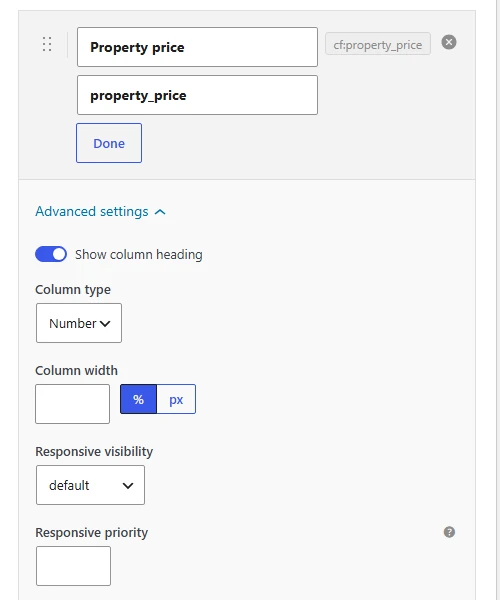
Note: check how your price column sorts before anyone else sees the page. Sorted alphabetically, a $1,000,000 penthouse files below a $200,000 condo, because a 1 comes before a 2. If that is what you are seeing, Barn2 documents the fix: open that column’s advanced options and set the Column type to Number, and do the same for size, bedrooms and bathrooms.
Running a Different Real Estate Theme?
The method transfers, the names don’t. Every real estate theme registers its own post type slug and meta keys, so read yours off your own site rather than copying anything above.
For the post type slug, open the admin list screen for your listings and read the address bar: it ends in edit.php?post_type= plus your slug. For the field keys, open a single listing and find the Custom Fields panel. If it isn’t showing, switch it on under Screen Options, or read the keys off the field group in whatever custom fields plugin your theme uses.
Then the steps above apply unchanged. Barn2 states that Posts Table Pro is designed to work with any WordPress theme, and it asks that you set the post type, fields and taxonomies up beforehand. If you haven’t settled on a theme yet, the main options and their trade-offs are in real estate WordPress themes compared.
What the Table Can’t Do (and the Free Alternative)
The table costs you the photo, and property sells on photos. Posts Table Pro does offer an image column, so you can drop a thumbnail into each row, but a thumbnail squeezed between five data columns is not how anyone falls for a house. Treat the table as the filtering surface; the card grid and property pages stay the browsing surface.
There is no filter dropdown for bedrooms, bathrooms or price either, only for the taxonomy fields.
Barn2 does publish a free plugin, Posts Table with Search & Sort, and it’s genuinely live. The WordPress.org plugin API reports version 1.4.13, around 3,000 active installs and a last update of September 14, 2026.
It also can’t do this job. Its post type support is, in Barn2’s own words, “Posts only”, which leaves a custom post type like estate_property outside what it covers.
When Should You Send a Buyer to the Compare Page Instead?
Use the table for the wide pass, when somebody is working through everything you have listed under $400,000 and wants it sorted by size. Use the Compare Properties page for the narrow pass, once that list is down to a handful.
Table first, Compare page second. That order doesn’t flip.
The compare tray holds four items, and a fifth selection silently pushes the first one out: we read that behavior straight out of the theme’s own compare script, and WPResidence’s published help article states the same four property ceiling. Nothing on screen announces the swap.
A buyer who shortlists eight properties and starts clicking Compare buttons quietly loses the first four they liked.
If what you want is the theme’s live map and filtered search rather than a static table, that’s a different tool with its own walkthrough: WPResidence Property Search, Filters, and IDX Map Guide.
Frequently Asked Questions
Can I filter a property table by bedrooms or price?
No. Posts Table Pro’s filter dropdowns are built for taxonomies, and Barn2’s documentation states outright that you can’t filter on custom fields. Bedrooms and price are both custom fields in WPResidence, so neither gets a dropdown.
The keyword search box above the table does read custom field content, so if bedrooms is showing as a column, a visitor can search on it. It reads every column in the table, so it’s blunter than a dropdown.
Does Posts Table Pro work with the WPResidence theme?
Yes. Barn2 states that Posts Table Pro is designed to work with any WordPress theme, and it asks that you set the post type, fields and taxonomies up beforehand. WPResidence registers estate_property and its property fields for you, so that groundwork is already done.
Is there a free version of Posts Table Pro?
Barn2 publishes a free plugin, Posts Table with Search & Sort, live on WordPress.org with roughly 3,000 active installs. Its post type support is “Posts only” in the vendor’s own comparison table, so it can’t display a custom post type such as a property listing. For real estate listings you need Posts Table Pro.
How much does Posts Table Pro cost?
Posts Table Pro is $69 per year for one site, or $349 as a one time lifetime license for one site, on Barn2’s own product page. Higher tiers cover more sites at both billing options. One site covers most brokerages, since the table lives on one property website.
Build the property comparison table for the wide pass, and leave the Compare Properties page for the shortlist.
If you’d rather give buyers a live map and filtered search, start with the search and filters guide above.