If you’re running a real estate website, you’ve probably thought about letting agents or property owners add their listings. That’s where front-end submission comes in. Instead of giving people access to your WordPress admin area, which can get messy quickly, you let them add properties through forms on your website.
WPResidence includes a complete front-end submission system where users can register, submit properties, upload photos, and manage their listings without accessing the WordPress dashboard.
Why Front-End Submission Matters
You usually do not want multiple agents, agencies, or property owners logging into your WordPress backend, changing settings, or accessing areas they do not need.
Front-end submission keeps users on the public side of your site while still allowing them to add and manage their property listings.
This setup works for different real estate models. You can use it for an agency website where agents submit listings, a real estate marketplace where property owners can post directly, or a directory-style site where registered users manage their own properties.
The Different User Types
WPResidence supports different account types, depending on how you want users to interact with the website.
Regular Users are basic accounts. These can be property buyers browsing the site or users who need a simple profile.
Agents have profile pages with contact information, photos, and bios. When they submit a property, their information can appear on that listing, so visitors can contact them directly.
Agencies represent companies or brokerages. Agency profiles can be used to group agents and listings under one company profile.
Developers are similar to agencies but are usually used for development companies or new construction businesses.
When someone registers on your site, you can allow them to choose their account type from the registration form, depending on your Theme Options setup.
Controlling Who Gets In
You do not have to automatically approve every new account. WPResidence includes options to manually review new agent, agency, or developer registrations before they have full access.
When manual approval is enabled, new users submit their registration and wait for admin approval. The admin receives a notification and can approve or reject the account from the WordPress admin area.
This helps reduce spam accounts and keeps your site professional. You can also manage what each user type can access from the dashboard using the theme settings.
Two Ways to Submit Properties
WPResidence includes two property submission flows.
The first one is for logged-in users. After registration and login, users can access the Submit Property page from their user dashboard and add property details, images, location, price, and other listing information.
The second one is for guests. You can create a public submission page that allows visitors to start adding a property before logging in. The system then asks them to register or log in to complete the submission.
Both flows are part of the theme submission system. The main difference is where the form appears and how the user reaches it.
Setting Up Your Submission Pages
To use front-end submission, you need the correct WPResidence dashboard and submit pages.
For logged-in user submissions, create a page and assign it the User Dashboard Submit template. This page is used inside the user dashboard.
For guest submissions, create a page and assign it the Front Property Submit template. This page allows visitors to start submitting a property before logging in.
If you import demo content, these pages are usually created automatically. If you remove demo content or build the site manually, you may need to recreate these pages and assign the correct templates.
What Goes in a Property Listing
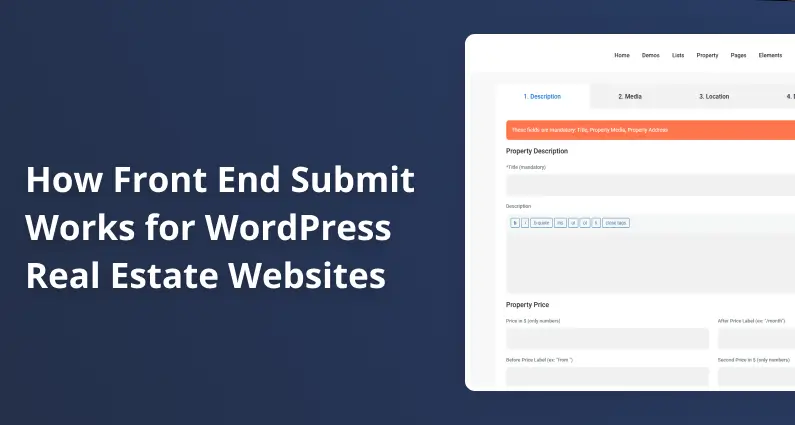
The front-end submit form includes the main fields needed for a real estate listing, such as property title, description, price, location, property type, property status, images, and other details.
You can also manage fields such as size, rooms, bedrooms, bathrooms, year built, garages, and other property details. WPResidence lets you choose which fields appear on the submission form and which fields are mandatory.
These settings are managed from Theme Options, under the submission and membership settings.
If you need additional fields, you can add custom fields from the theme settings. For example, you can add fields like Open House Date, HOA Fees, or other details specific to your market. After creating custom fields, you can include them in the front-end submission form from the submission field settings.
Location Data: Two Approaches
WPResidence gives you options for how users enter property addresses and location data.
The first option uses autocomplete. With Google Places API or OpenStreetMap integration, users can start typing an address and select one of the suggested results. The system can then fill in location details and map coordinates.
The second option uses dropdowns. This is useful for websites focused on a specific city, region, or local market. Users select from predefined cities, areas, and neighborhoods that you manage in the site admin.
The best option depends on your website scope. National or international websites usually benefit from autocomplete, while local websites may prefer dropdowns for better control and consistency.
Uploading Media Files
Property images are an important part of each listing. WPResidence allows users to upload images directly from the front-end submission form.
Users can upload multiple images, set a featured image, and reorder photos. They do not need access to the WordPress Media Library.
The theme can also support additional media information, such as video links, virtual tours, floor plans, or property documents, depending on your configuration.
File upload limits depend on your WordPress and server settings. If users cannot upload larger files, you may need to increase the PHP upload limits or ask your hosting provider to adjust them.
Paid Listings and Membership Plans
WPResidence can be used with WooCommerce for paid submissions, membership packages, and paid listing options.
You can create listing packages with a specific number of listings, featured listings, or expiration rules. Users can purchase a package and then submit properties from the front end.
The system tracks how many submissions each user has left. When the package limit is reached, the user needs to purchase another package or upgrade.
You can also use one-time paid submissions instead of membership packages, depending on your business model.
Free submissions are also supported. If you do not want to charge users for adding listings, you can allow free property submissions and use another monetization strategy.
Keeping Quality High
Front-end submission does not mean every listing has to go live immediately. WPResidence includes moderation options.
When admin approval is enabled, new submissions are saved as pending review. The admin can check the listing in wp-admin and publish it only after reviewing the details.
This helps prevent spam, fake listings, or incomplete content from appearing on the site.
Users can also edit their own listings from the dashboard. Depending on your setup, edits can be published immediately or reviewed again by the admin.
Listings can also be disabled without being deleted. This is useful when a property is sold, rented, or temporarily unavailable.
How Profiles Connect to Listings
Every property submitted from the front end is connected to the user who submitted it.
On the property page, visitors can see the assigned agent, owner, agency, or developer information, depending on your setup. This can include a profile photo, phone number, email, and contact form.
Agent profiles can show the listings connected to that agent. The user dashboard also includes a My Properties section where users can view, edit, or manage the listings they submitted.
Built-In Messaging System
WPResidence includes an inbox/private message system. When visitors send messages through property or profile contact forms, the assigned user can receive and manage messages from the front-end dashboard.
This allows agents or owners to handle inquiries without accessing the WordPress admin area.
The system helps keep property submission, listing management, and visitor communication in one front-end dashboard.
Making It Your Own
The front-end submission system can be adjusted to match your website needs.
You can change field labels, translate text, rename user roles, and decide which dashboard pages or submission fields are available.
Security options such as reCAPTCHA and email verification can also help reduce spam registrations and fake submissions.
For deeper changes, developers can customize templates through a child theme. However, custom template changes require coding and are outside the standard theme options.
Real-World Setup Tips
For most websites, it is safer to start with moderation enabled. Approve the first few listings manually so you can make sure users understand the submission process.
Think carefully about which user roles should be allowed to submit listings. For example, you may want only agents, agencies, or developers to submit properties, while regular users can only browse listings and save favorites.
It is also a good idea to test the full submission process yourself before launching. Create a test user, submit a property, upload images, edit the listing, and check the approval flow.
Resources for Going Deeper
The WPResidence help center includes articles about submission fields, user dashboards, membership settings, paid submissions, and front-end property management.
You can also check the WPResidence demos to see how the user dashboard and front-end submission system work.
Conclusion
Front-end submission changes how a real estate website operates. Instead of manually adding every property yourself, you can allow agents, agencies, developers, or property owners to manage their own listings.
WPResidence includes the tools needed for this workflow: registration, user dashboards, submission forms, media uploads, moderation, paid submissions, and profile connections.
Once the submission pages, user roles, and moderation settings are configured, users can manage listings from the front end while your WordPress admin area stays protected.
FAQ
How does front-end submission keep agents out of the WordPress admin area?
Front-end submission lets agents and owners add and manage listings through on-site forms and a user dashboard, instead of giving them WordPress admin access. In WPResidence, users can register, submit properties, upload photos, edit listings, and handle inquiries from the front end.
What user account types does WPResidence support for front-end submissions?
WPResidence supports Regular Users, Agents, Agencies, and Developers. Regular Users are basic accounts, while Agents, Agencies, and Developers can have profile pages and can be connected to submitted listings, depending on your setup.
Can I review and approve new accounts before they can submit listings?
Yes. WPResidence lets you enable manual approval for new agent, agency, or developer registrations. When manual approval is active, the admin can review the account before the user gets full access.
What are the two ways users can submit a property on a WPResidence site?
WPResidence provides two submission flows: a logged-in submission form inside the user dashboard and a guest submission form on a public page. Logged-in users submit from the dashboard, while guest users can start a submission and then register or log in to complete it.
How do I set up the submission pages, and can I customize the fields on the form?
To enable submissions, create WordPress pages using the WPResidence templates. Use the User Dashboard Submit template for logged-in submissions and the Front Property Submit template for guest submissions. You can control which listing fields appear and which are mandatory from Theme Options. You can also add custom fields and include them in the submission form settings.