How Does WPResidence Property Search and Map Work?
Last updated: June 15, 2026
By WPResidence Team
Are you evaluating WPResidence for a real estate site that needs serious property search: custom filters, a live map, maybe MLS listings mixed with your own? For sites like that, WPResidence is the right call. Here’s what it does, and where it stops.
On real estate theme property search, WPResidence ships two no-code builders: the theme-core Advanced Search (8 form types) and the Elementor Search Form Builder (11 layouts), plus a visual Custom Fields Builder that turns any property attribute into a searchable filter without code.
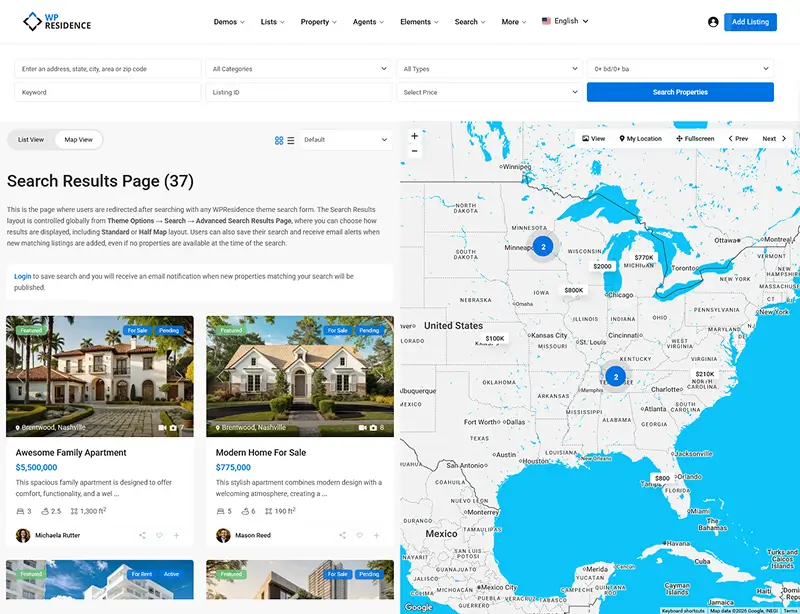
WordPress IDX map search runs on Google Maps or OpenStreetMap (OSM needs no API key), with marker clustering, radius search, device geolocation, and a half-map results layout that refreshes by AJAX. Favorites, saved searches, and email alerts all ship built in, no paid add-on. MLS listings connect through MLSImport, which imports each listing as a native WordPress post that’s searchable alongside your own inventory.
Two caveats up front: freehand polygon “draw on map” search isn’t built in (radius and geolocation are), and RealEstateListing schema comes from an SEO plugin like Yoast or Rank Math, not from native theme output.
Two Ways to Build Your Property Search Form
Here’s the first thing that trips up buyers comparing WPResidence: there isn’t one search tool, there are two, and they don’t share settings. They are the Theme Advanced Search (theme core, it predates Elementor) and the Search Form Builder (an Elementor widget). You can run both on the same site without conflict, as long as you configure each one on its own. Once you know which tool is which, the configuration is straightforward.
It’s also where the confusing “8 versus 11” numbers in older reviews come from. They aren’t a contradiction: the theme-core Advanced Search offers 8 form types; the Elementor builder offers 11 layouts. The trap is assuming a setting in one place changes the other. It does not. Theme Options » Search has zero effect on the Elementor widget.
Either tool can sit in your header, over a hero image, in a sidebar, in a floating sticky panel, in a half-map layout, or on a standalone page. Placement is a setting, not code. You can run several search forms on one site, each with its own field set, all reading the same field definitions.
Theme Advanced Search: The Global Site-Wide Tool
This is the theme-core tool, under Theme Options » Search. You get 8 built-in form types, plus controls for the number of fields, fields per row, the price slider, and which fields show. Reach for it for the global header search bar, a WordPress media header block, a sidebar widget, or a shortcode in a classic-editor or Gutenberg page. No Elementor required.
The Elementor Search Form Builder: Granular Layout Control
This is the drag-and-drop Search Form Builder widget, with 11 layouts. Every field choice, tab label, button text, and style setting lives inside the widget’s own Elementor panel, with no Theme Options screen involved. Use it for Elementor pages (landing pages, listing archives, tabbed search) where you need full responsive controls per breakpoint.
What Custom Filters Can You Add Without Code?
Can you build the exact filters your niche needs without a developer, even coming off a SaaS portal or a competitor like Houzez? Yes. When you open the Custom Fields Builder in your dashboard, you’ll see six field types: short text, long text, dropdown, number, date, and checkbox, each markable required or optional.
The detail that actually matters for filtering: you configure per-field search behavior yourself, as exact match, range (greater than or less than), or partial text match. Numeric fields use EQUAL, SMALLER, or GREATER logic; date fields use DATE GREATER or DATE SMALLER. So an HOA fee field filters by range while a “furnished” dropdown filters by exact value, a distinction most theme reviews skip.
Note: The Features and Amenities filter uses AND logic. Check three amenities and results show only listings that have all three, not any of the three. Confirm this before building a large amenities panel.
Fields are technically unlimited, with documented installs running 100-plus attributes, but restraint pays off. Keep active filters to roughly 15 to 20 at most, aim for 6 to 10 on a niche site, and cap each form at 8 to 12 fields for clarity. Core fields (price, beds, baths, location) cover the majority of searches on their own.
You can group fields into named sections (Amenities, Interior Details, Technical Specs) and drag-reorder them. And empty custom fields auto-hide on the front end, so one shared template serves multiple segments without “N/A” gaps.
ACF (Advanced Custom Fields) is optional, not required. The native builder is enough for most sites running 10 to 30 custom fields; ACF and the theme’s real estate API are for developer-level schema work in Elementor templates, not a prerequisite for a non-technical admin.
Niche Examples: Pet-Friendly, HOA, Student Housing, and More
The niche examples cover what you’d expect. Pet-friendly works as a dropdown or checkbox; HOA fee as a number field with a range filter; co-working listings can split dedicated desks from hot desks; student housing fits a status, label, or dropdown. School district works as a dropdown or text field; waterfront, gated community, and EV charger each work as a checkbox; minimum lease term as a number range; furnished as a dropdown. Every one becomes a front-end filter without code.
When to Use a Taxonomy Instead of a Custom Field
The rule of thumb: use a taxonomy when you need an SEO-friendly archive URL or a parent-child hierarchy (City to Area, Property Category, Property Type); use a custom field when you only need a front-end filter. Built-in taxonomy labels are renamable for local markets (Flats and Condos to Barangays, City to Arrondissement) without code. The tabbed search (Search Type 6) builds For Sale, For Rent, Commercial, and Vacation Rentals tabs, each with a locked status and its own field set.
Sales and Rentals on One Site
Coming from a SaaS platform, you might assume sales and rentals need two separate sites. In WPResidence they live in one install as a built-in feature. Property Status is a real WordPress taxonomy with values like For Sale, For Rent, Sold, and Rented, plus custom states (Open House, Hot Offer, Price Reduced, New Listing). Sale and rental prices are separate fields, rental periods carry suffixes (per month, per week, per day, or per night), and one listing can hold both a sale and a rental value at once. The hidden-price option shows “Price on Application,” “Contact for Price,” or “Price on Request,” globally or per listing.
The practitioner move is per-form status behavior. You can hide the status field, lock it to one value, or leave it open. To build a rentals-only landing page, pre-set the status to For Rent and suppress the selector, so rental-only filters like Minimum Lease Term and Furnished never appear in the sales form. Because Property Status is a real taxonomy, For Sale and For Rent each get their own crawlable archive URL for a Buy or Rent menu, which pays off once a site passes roughly 100 listings.
How Does Map-Based Search Work in WPResidence?
The map decides whether a theme can stand next to a Zillow-style experience. WPResidence is a two-provider theme: Google Maps (your own API key) or OpenStreetMap (Leaflet tiles, no API key needed). In Theme Options you’ll see a single provider dropdown that switches between them in under a minute, and you can override the provider per page template.
A word on Mapbox, because reviews get this wrong. It is not a native third option next to Google and OSM. A developer can layer Mapbox-styled tiles inside the OSM mode with an access token, but that’s optional tiling, not a first-class provider toggle.
Competing themes like RealHomes, Houzez, and MyHome offer a native three-way Mapbox switch; WPResidence does not. For most builds it doesn’t matter, because OSM and Google already cover the need.
Switching providers does not break stored locations. Latitude and longitude are saved in the WordPress database at submission, and whichever provider is active simply re-renders those coordinates: no re-geocoding, no lost pins.
The standout layout is the half-map: your listing list on one side, a live-synced interactive map on the other. Change a filter and AJAX refreshes both the pins and the visible list, no full page reload. You also get Street View when Google is active (hidden under OSM), autocomplete for cities, neighborhoods, and zip codes after 2 to 3 characters, custom pin icons per property type or status, price labels on the pins (“$250k”), and a Zillow-style quick-view modal with title, thumbnail, price, and a link to the listing.
Cost control follows from the provider. OSM is free by default and uses OSM Nominatim for “near me” geocoding to avoid Google Places charges. Google charges per its current usage tiers (check Google Maps Platform for live rates) and lets you style the map with JSON overrides, Snazzy Maps presets, hidden POIs, or dark mode. Here’s how the two compare.
| Feature | Google Maps | OpenStreetMap (Leaflet) |
|---|---|---|
| API key required | Yes | No |
| Monthly cost | Usage-based (see Google Maps Platform for current rates) | Free (OSM community data) |
| Street View on property pages | Yes | No |
| Places autocomplete | Google Places API (costs apply) | OSM Nominatim, no charge |
| Map styling | JSON overrides (Snazzy Maps compatible) | Custom Leaflet tile layers |
| GDPR / privacy | User requests routed to Google servers | No Google key; tile and geocoding requests still hit your OSM or Nominatim server |
| Mapbox-styled tiles | Not applicable | Optional via Mapbox access token |
Clustering, Pin Limits, and Radius / Geolocation
Marker clustering is a Theme Options toggle: nearby listings roll into a numbered badge that splits as you zoom in, and it earns its keep once a dense area holds 100 to 200-plus listings. The pin-limit setting caps markers per view; a sensible start is around 200 pins, with 300 as a practical upper example, since the map slows down past roughly 300 to 400 unclustered markers with the theme’s standard rendering, which is exactly what clustering is there to solve.
Viewport-based loading draws only the pins in the visible area and fetches more on pan or zoom. Radius search offers a miles or kilometers toggle with configurable default, minimum, and maximum distances, geocoding runs on OSM Nominatim by default, and you can lock autocomplete to a single country. All of it toggles from Theme Options, no code.
Polygon Search, GeoJSON Overlays, and Neighborhood Context
Now the question buyers actually whisper: can I draw on the map like Zillow?
The Polygon Answer
No. WPResidence has no freehand polygon, no “draw on map” search built in by default; that would require a third-party map library or custom development. What you do get, fully native, is radius search (miles or kilometers, configurable range) and device geolocation for “homes near me,” which cover most buyer journeys: browsing within X miles of a point, or using a phone’s location to see what’s nearby. If freehand polygon is essential to your brief, treat it as a custom development line item, since it’s a real feature difference against some SaaS portals.
GeoJSON District Boundaries and Neighborhood Context
A related feature is easy to confuse with polygon search. Admins can upload or paste a GeoJSON file to outline a neighborhood, school zone, condo complex, or master-planned community on area-guide maps. That’s admin-side boundary display: you define the shape, and the visitor sees it as context, not visitor-side freehand drawing. For lifestyle context, a Yelp API key adds nearby places (schools, restaurants, shops) with ratings and distance, cached 24 hours, and Walk Score adds a numeric walkability score with a label like “Very Walkable” or “Car-Dependent.” One caveat: school data is a manual custom field, not a live feed, so if school information matters, plan to enter it by hand.
Are Saved Searches, Favorites, and Email Alerts Built In?
Buyers from SaaS platforms expect to pay extra for engagement features. In WPResidence, favorites, saved searches, and email alerts are all built in, no paid add-on.
Favorites use a heart icon on listing cards and single pages. The detail that matters for conversions: guest favorites are stored in the browser via localStorage and cookies, persist after the browser closes, and merge into the user’s account when that visitor registers or logs in from the same device. No account required to start saving, and admins can toggle and style the button.
Saved searches go a step up. After an advanced search, a “Save Search” button stores the exact filter set as a named, date-stamped search, with a login prompt for guests.
Log in and you’ll see a front-end dashboard (Profile, Favorites, Saved Searches, Messages, My Properties, Payments) where each saved search can be renamed, deleted, or have alerts toggled individually. Email alerts run daily or weekly on a schedule the admin sets globally in Theme Options. The copy is editable, the theme handles scheduling and sending with no manual cron, and alerts respect every custom field and taxonomy, so a query like “Pet Friendly, near the marina, under $2,000 per month” still triggers correctly.
There’s also a comparison tool for up to four listings side by side. One note on sorting: featured listings surface first, but user-facing sort dropdowns beyond that are limited in the documentation, so don’t expect a deep multi-axis sort menu.
IDX and MLS Integration: MLSImport vs IDX Plugins
There are two fundamentally different ways to get MLS data onto a WPResidence site, and they don’t produce the same result.
The recommended path runs through MLSImport over the RESO Web API. It maps MLS fields into the theme’s own property fields, so each MLS listing becomes a native WordPress estate_property post: its own crawlable URL, searchable by every theme filter, sortable on every archive, shown in every map view, indistinguishable from a listing you entered by hand. The IDX-plugin path is different: you drop a vendor shortcode or iframe inside a page, and those listings live on the vendor’s servers, so they never appear in the theme’s native search, archives, or maps. That’s why an imported feed and an embedded widget feel so different.
| Dimension | MLSImport (import path) | IDX Plugin (iframe/embed path) |
|---|---|---|
| Listing storage | Native WordPress posts | Vendor’s servers |
| Appears in theme search | Yes, fully indexed | No, separate search widget |
| Own domain URLs | Yes, crawlable and indexable | No, iframe content not indexed |
| Mix with own listings | Yes, one unified search | No, separate widget experience |
| SEO value | Full (your domain, your URLs) | Minimal (vendor-hosted content) |
| Cost after trial | ~$49/month (MLSImport) | $50 to $150+/month (varies by vendor) |
| Data refresh | Hourly | Varies by vendor |
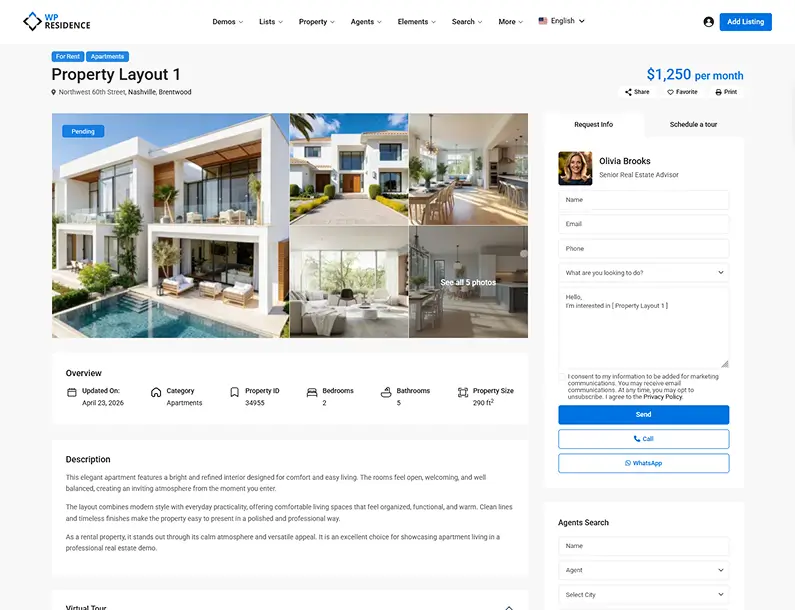
One disclosure worth making plainly: MLSImport is the IDX plugin built specifically for WPResidence (it ships as “MLSImport for WPResidence”) and is recommended here as the in-house default, not as a neutral cross-vendor pick, so weigh the recommendation with that in mind. It connects to 800-plus RESO-compliant MLS boards across the US and Canada, costs about $49 per month after a 30-day free trial (billed by MLSImport, not WPResidence, and worth checking for current pricing since plans change), and syncs hourly.
Board access isn’t instant, and that’s not the plugin’s doing: boards require approval, active membership, data-use agreements, and attribution text (“Listing data provided by [MLS]”) on every display. The theme license is a separate purchase ($49 a year for one site); MLS data is never bundled in.
Switch boards or vendors later and your imported listings stay put as native posts; you repoint the MLSImport connection while design, menus, search config, and styling persist. For a bulk move, the WP All Import add-on for WPResidence maps CSV or XML files into property posts and auto-creates agent profiles. Named IDX vendors like IDX Broker, iHomefinder, dsIDXpress, Diverse Solutions IDX, and Showcase IDX can coexist as embed widgets, but they won’t power your native search.
Will Performance Hold Up at Scale?
Migrating from a large IDX setup, the real worry is whether a WordPress site with thousands of listings turns into a slideshow. A documented WPResidence demo of roughly 2,500 properties reaches full page load in about 4 seconds on a tuned host. That number is total page load time, not the stricter Core Web Vitals LCP metric (covered just below, where tuning brings mobile LCP to around 2 to 3 seconds), so the two figures aren’t in conflict. It holds up because the theme ships performance machinery built for this load.
The piece most reviews miss is the theme-level property query cache, in Theme Options » Site Speed. It’s distinct from any page-cache plugin, built for large MLS imports, refreshes automatically about every 4 hours, and has a manual Delete Cache button. No generic caching plugin replaces it; you enable it in theme options. (MLSImport syncs hourly, so the two cadences coexist without serving stale data.)
AJAX search keeps things light: a filter change reloads only the results area and map pins, never the full page, and AJAX endpoints stay uncached behind full-page caching so results stay fresh. The map adds viewport-based pin loading, an optional “Search in area” button, and a “read from file” mode for very large inventories.
Caching, Hosting, and Core Web Vitals Targets
A practical order of operations for performance tuning:
- Enable the Theme Options » Site Speed query cache first.
- Add WP Rocket or LiteSpeed Cache for page-level caching (W3 Total Cache and WP Fastest Cache also work).
- Compress listing photos to 100 to 300 KB each in WebP.
- Serve assets through a CDN.
- Move to PHP 8+ on a VPS or managed host with OPcache and a Redis or Memcached object cache once you pass 500 listings, since cheap $9 shared plans struggle past a few hundred.
For Core Web Vitals, target LCP at or under 2.5 seconds and CLS at or under 0.1 (fixed-height map containers help), with mobile LCP around 2 to 3 seconds on 2,000 to 2,500 listings after tuning. Verify with PageSpeed Insights, GTmetrix, and WebPageTest; live installs reach roughly 90 to 95-plus on desktop.
How Does WPResidence Handle Mobile Search?
Mobile search here isn’t an afterthought. WPResidence runs Bootstrap 5 throughout, so grids and listing cards collapse to a single column with large, touch-friendly tap targets, tested at 320 to 414px widths. The mobile header is customizable, with a separate mobile logo, sticky navigation, and a pinned Search and Add-Listing button at the top.
Crucially, the theme does not split search logic by device. The same configuration runs on desktop and mobile; only the layout adapts. You choose which filters show inline versus behind a “More filters” drawer, while price sliders stay visible.
On the half-map, the map stacks above or below the cards, and tapping a card highlights its pin and vice versa. First city-level map load on 4G, with pin limits and clustering active, runs about 3 to 4 seconds.
Galleries are swipe sliders, and agent blocks surface phone, WhatsApp, and contact buttons near the top. The front-end “Add Property” dashboard is fully responsive, so agents add or edit listings and upload photos from a phone. Set yourself sensible design goals rather than treating them as formal benchmarks: a visitor should see a search box and at least one listing within the first few seconds, and be able to reach relevant listings inside a minute. Treat those as targets to test against, not industry standards. Verify with the Google Mobile-Friendly Test and the Search Console Mobile Usability report.
SEO and Schema Markup: Indexing and One Caveat
The question underneath the SEO talk is whether your MLS listings will get indexed and earn rich snippets. The indexability story is strong; the schema story has one caveat.
WPResidence does not output native RealEstateListing JSON-LD from its templates. It outputs clean semantic HTML5 (H1 title, price, address, and features as readable text) and delegates structured data to an SEO plugin: Yoast, Rank Math, or All in One SEO. Those plugins emit RealEstateListing, Offer, Place, and BreadcrumbList JSON-LD mapped to the theme’s real estate fields. This is deliberate, to avoid double or clashing schema, and the mapping is a one-time setup, not per-listing work.
Where the theme shines is native indexability. MLSImport listings become real estate_property posts with crawlable URLs on your own domain, not iframes or JS-rendered vendor content. City, Area, and Property Category taxonomies each get a crawlable archive URL, and the taxonomy template builder (added in version 5.3) lets you design each city or area page with unique SEO copy, photos, and blocks above the listing grid.
The AJAX search interface is intentionally non-indexable to avoid thin, duplicate filter pages, while property and taxonomy archives index by default. Portals with 500-plus listings can start surfacing rich results, with local impressions typically appearing within 2 to 4 weeks and stronger gains over 3 to 6 months.
Schema Setup in ~20 Minutes
The setup is short and you do it once:
- Install Yoast or Rank Math.
- Open the theme’s real estate field-mapping panel.
- Map your price, address, and property type fields to the matching JSON-LD properties.
- Test one listing URL with Google’s Rich Results Test.
- Monitor Search Console » Enhancements for errors.
That covers every current and future listing, so you’re not repeating it per property.
URL Structure and Local SEO City Pages
You can rename base slugs (estate_property to homes, listings, villas, or condos) under Theme Options » General in a minute or two, no PHP. Internal queries use post and taxonomy IDs, not the visible slug, so renaming won’t break search or archives; just flush permalinks and add 301 redirects on a live site. Pair the Custom Post Type Permalinks plugin for keyword-rich paths like /denver/homes-for-sale/123-main-street/. After changing the structure, test a few listing URLs and your archive pagination, since deeply nested permalink patterns can occasionally clash with paging. Multilingual SEO runs through WPML, with language-specific URLs, slugs, and hreflang attributes.
Registration, Privacy, and Spam Protection
Saved searches and alerts need accounts, and submission forms are spam magnets, so this layer matters. WPResidence ships five user roles: Regular User, Agent, Agency, Developer, and Owner, each with a role-specific dashboard and submission permissions. Agent and agency sign-ups land in an admin approval queue, and social login is available.
For price privacy, the native price-hiding setting (global or per listing) shows “Contact for Price” or “Price on Request.” One limitation to flag: the theme handles price hiding and submission controls but does not hard-lock an entire property page from public view on its own. Full-page member-only gating needs a content-restriction or membership plugin targeting the estate_property post type. You can, however, tag VIP or off-market listings with a custom taxonomy and surface them only in gated archives or dashboards.
On GDPR, you get a built-in cookie notice with editable text and a policy link, a consent checkbox on all native forms, an approximate-pin option that hides the exact street address, and analytics snippets that load only after consent. And OpenStreetMap is the privacy-friendlier map here, since no API key means no user requests sent to Google.
For spam, native reCAPTCHA v2 and v3 (keys in Theme Options) drop onto registration, login, contact-agent, and submit-property forms. WordPress nonces protect every form, an admin moderation queue catches the rest, and a duplicate-listing check compares each new address against existing ones (which matters past 100 to 200 listings). It works with Akismet, and native forms email leads to a per-agent inbox with a built-in HubSpot integration for CRM sync.
WPResidence gives you a complete, working real estate theme property search system for nearly any project, from a solo agent’s single-city site to an MLS portal with thousands of imported listings. Just go in clear-eyed about the two caveats: there’s no freehand polygon search, and native schema comes from an SEO plugin rather than the theme itself. If that fits what you’re building, try the live demo or start the MLSImport 30-day free trial and watch your own listings flow into native, searchable posts.
You might also want to check out the MLSImport setup and pricing before you commit, walk through the WPResidence live demo to test the half-map search yourself, and run your hosting against the Core Web Vitals checklist above.
Key Takeaways
- WPResidence ships two separate search builders, the Theme Advanced Search (8 form types) and the Elementor Search Form Builder (11 layouts), configured independently from each other.
- Custom property filters such as pet-friendly, HOA fee, and school district are added through a no-code Custom Fields Builder, and ACF is not required.
- Map-based search uses Google Maps or OpenStreetMap; freehand polygon drawing is not built in, while radius search and device geolocation are.
- MLSImport imports MLS listings as native WordPress posts (about $49/month after a free trial), making them searchable alongside your own inventory in one unified result set.
- RealEstateListing schema requires a plugin such as Yoast or Rank Math; the theme does not output it natively.
Frequently Asked Questions
Do I need to write code to customize the search filters and layouts?
No. Both the Custom Fields Builder and the Search Form Builder in WPResidence are visual, point-and-click tools. Any field type (dropdown, number, date, or checkbox) becomes a front-end search filter without touching code. You’d only need a developer to register a brand-new WordPress taxonomy, build a custom MLS feed, or do Elementor template-level API work.
Does WPResidence include polygon “draw on map” search like Zillow?
No. Freehand polygon drawing isn’t built into WPResidence. Radius search and device geolocation (“homes near me”) are fully native and cover most buyer journeys. Admins can also upload GeoJSON shapes to display fixed neighborhood or district boundaries on area-guide maps, but those are admin-drawn outlines, not visitor-drawn polygons. True freehand polygon needs custom development or a third-party map library.
Do I always need a Google Maps API key, or can I use OpenStreetMap for free?
OpenStreetMap (Leaflet) needs no API key and is free, a solid default for most new WPResidence builds. Google Maps requires your own API key and bills on Google’s current usage-based tiers. Switch to Google when you need Street View on property pages or Places autocomplete. Either way, switching providers never affects your stored property coordinates.
Will changing from Google Maps to OpenStreetMap break my existing property locations?
No. Latitude and longitude coordinates are stored in your WordPress database when a listing is submitted, not tied to the map provider. Switching providers in the WPResidence theme options changes only how the map tiles render. Every existing pin reappears on the new provider without re-geocoding a single listing.
Can guests save favorites without creating an account?
Yes. In WPResidence, favorites are stored in the visitor’s browser through localStorage and cookies, so no account is required to start saving. They persist after the browser closes and merge into the user’s account automatically when they register or log in from the same device. Named saved searches, the ones with email alerts, do require a login.
Can I show different search forms and filters for sales versus rentals?
Yes. Lock the status field to “For Rent” on a rentals landing page and remove the selector entirely, so rental-only filters like Minimum Lease Term and Furnished never appear in the sales form. WPResidence also includes a tabbed search builder (Search Type 6) where you build separate For Sale, For Rent, and Commercial tabs, each with its own field set and locked status.
Can I mix my own listings with MLS-imported listings in one search?
Yes, when you use MLSImport. Each imported listing becomes a native WordPress estate_property post in the same database as your manually entered listings, so they appear together in every WPResidence search, filter, archive, and map view. IDX plugins that rely on iframes don’t achieve this: their listings stay on the vendor’s servers and never enter the theme’s native search.
How much does it cost to add IDX or MLS to a WPResidence site?
The WPResidence theme license costs $49 a year for one site, and IDX is a separate ongoing service. MLSImport, the default integration built for WPResidence, runs about $49 per month after a 30-day free trial, billed directly by MLSImport (verify current pricing, since plans change). Traditional IDX plugins such as IDX Broker, iHomefinder, and Showcase IDX typically cost $50 to $150 or more per month and use iframes that don’t power native search.
Does WPResidence add RealEstateListing schema to property pages automatically?
Not natively. WPResidence outputs clean semantic HTML5 but doesn’t hard-code JSON-LD schema into its templates. Schema comes from an SEO plugin (Yoast, Rank Math, or All in One SEO) that maps the theme’s real estate fields to RealEstateListing, Offer, and Place types. It’s a one-time setup of roughly 20 minutes, not work you repeat for every listing.
How many map pins can I show before clustering becomes necessary?
Start enabling clustering and pin limits once a single map view holds more than roughly 200 listings. A starting cap near 200 pins per view is the recommendation, with 300 as the upper practical example in documented installs. The map’s standard marker rendering begins to slow past about 300 to 400 unclustered pins, which is why clustering and pin limits exist. WPResidence also loads pins by viewport, fetching more only as the user pans.
Do I need extra plugins or ACF to create custom fields and filters?
No. WPResidence has a native Custom Fields Builder, so you don’t need Advanced Custom Fields (ACF) or any extra plugin for typical setups. The native tools comfortably handle sites with 10 to 30 custom fields. ACF and the theme’s real estate API exist for advanced, developer-built schemas exposed in Elementor templates, but most sites never reach for them.
Where can I place the search form on a page?
Anywhere, and placement is a setting rather than code. A WPResidence search form can sit in the header, a hero section over an image, a sidebar, a floating or sticky panel, the half-map layout, or a standalone page. You can also run multiple search forms on one site, each with its own field set, all reading the same underlying field definitions.
What’s the difference between the Search Form Builder and the theme’s Advanced Search, and can I use both?
They are two separate tools, and both can run on one WPResidence site without conflict. The theme-core Advanced Search lives in Theme Options > Search and offers 8 form types; the Elementor Search Form Builder is a drag-and-drop widget with 11 layouts and full Elementor styling. You configure each separately, and Theme Options > Search settings do not affect the Elementor widget.
Does WPResidence support Google Street View on property pages?
Yes, when Google Maps is the active provider in WPResidence. Street View appears on property pages under Google and is hidden when you run OpenStreetMap, which has no Street View. You can also style Google Maps from the theme’s map settings, hiding points of interest, the search bar, or the Street View pegman, or switching to a dark mode.
Can I build a location hierarchy like country, state, city, and neighborhood?
Mostly yes, with one caveat about country. Property State, City, and Area (neighborhood) are linked WPResidence taxonomies with required nesting (an area belongs to a city, a city to a state) and chained dropdowns on the submit form that prevent duplicates like “New York” versus “NYC.” Country is auto-detected from the address and map data rather than managed as its own taxonomy, and the structure scales past 10,000 properties.
How often are saved-search email alerts sent, and who controls the schedule?
The admin sets the schedule in theme options, either daily or weekly, and WPResidence sends the alerts with no manual cron. The wording is editable, and alerts respect custom fields and taxonomies, so a saved search like “pet friendly, near the marina, under 2,000 a month” only triggers on genuine matches. Named saved searches with alerts do require the visitor to be logged in.